
Parallels Client (legacy)
- Updated
- Version 15.0.3903
- Requirements Android 2.2.x+
- Genre Apps / Business
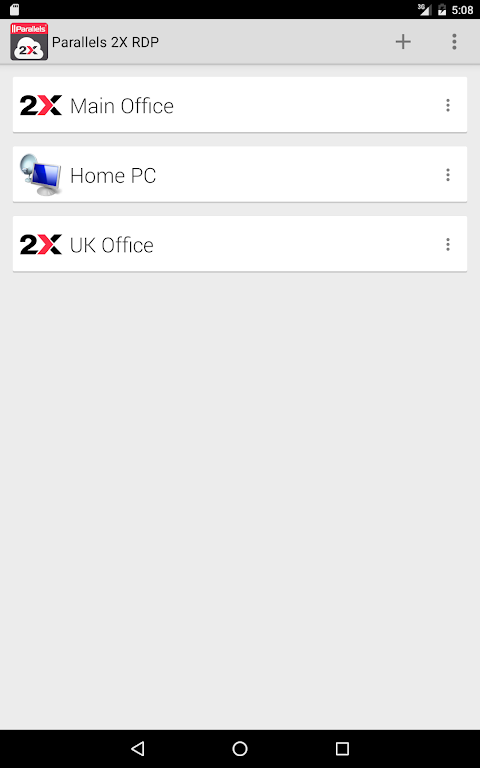
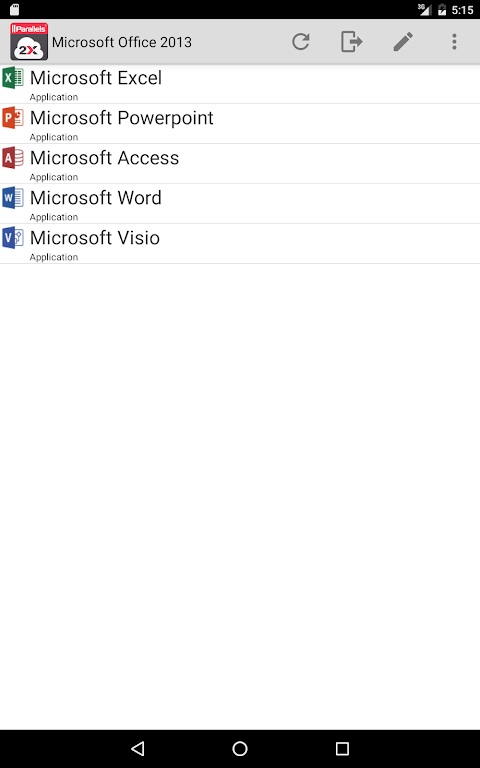
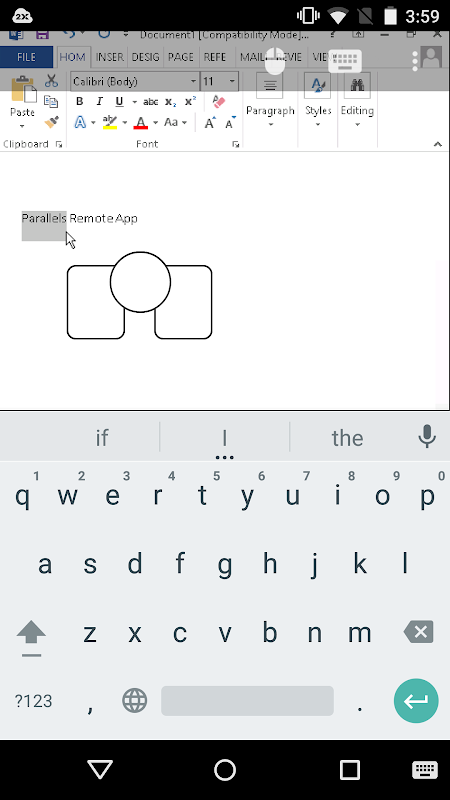
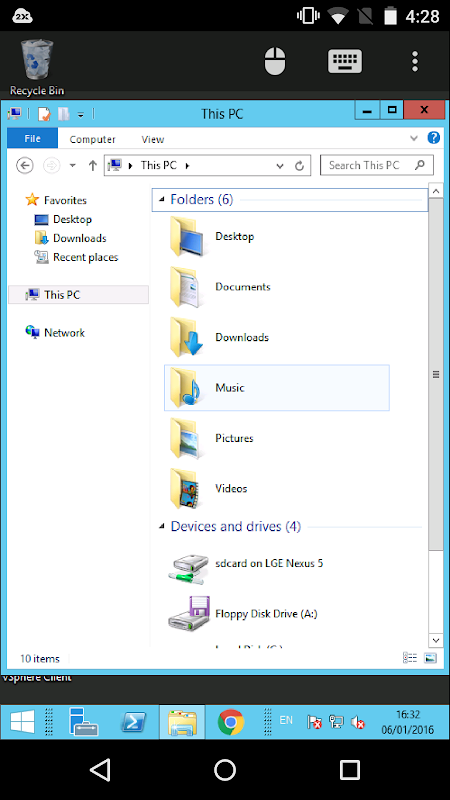
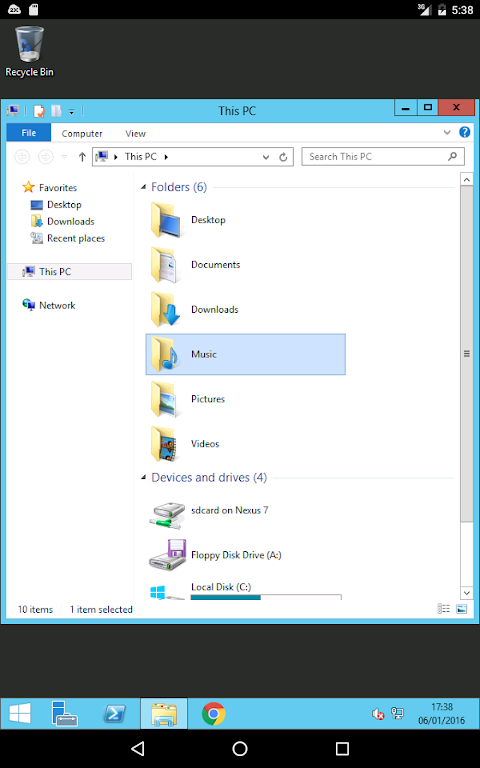
Access Windows apps from Android instantly.
The legacy Parallels Client app for Android solves a critical business problem, giving you access to full Windows applications and corporate desktops securely from your phone or tablet. This remote desktop client allows Android devices to connect to Parallels Remote Application Server.
The application allows published Windows applications and virtual desktops and terminal server sessions access without installing those programs to your local Windows computer. Employees can use shortcuts to access line-of-business tools, Office suites and bespoke corporate software housed in the corporation through its App Launcher interface. The Windows application publishing model means that IT maintains control and users have one-touch access to their desktop.
The ability to connect from anywhere is what makes Parallels Client distinct from vanilla RDP-based tools. When on the same network as your servers, you can directly connect to them without going through a gateway. Alternatively, connect securely from an external network through the Parallels Secure Client Gateway. This two modes allow users to work remotely or in the office. Hence, it is a simple BYOD remote work solution.
SSL-enabled connections and MFA enabled on RAS backend safeguard enterprise data without harming user convenience.
The client can connect both via Terminal Server RD Session Host client and direct RDP access to individual Windows PCs. Even when you are streaming applications that use a lot of resources, using RemoteFX will make the graphics work fast. You can send documents from your remote sessions to your own local or network printer, which helps if you need a physical copy.
Securely connect to corporate desktops.
As an enterprise remote access solution, Parallels Client (legacy) is a business-grade product, not consumer. With Parallels RAS, organizations can publish only approved applications and desktops, maintaining full control. Unlike generic RDP clients that reflect whole screens and don’t manage access per user, it offers fine-tuned access by category such as printer, clipboard and drive.
The design states it is a real Citrix VMware Microsoft RDP alternative for companies who are important in the Parallels ecosystem. Even though Citrix Workspace or VMware Horizon Client do the same job, the advantages of RAS-specific features such as launching at the app, route at the gateway, and RAS-aware session are only integrated with Parallels Client.
5 Quick Setup Tips:.
- Before connection, set your RAS server address and gateway.
- Enable SSL Certificates on Your Parallels RAS Deployment to Secure Sessions
- You can map touch gestures to frequently used Windows actions in the client settings.
- Whether employing manual or auto-configuration processes, be sure to set up universal printing initially. This way, the workflow will not be interrupted.
- Use both available options for gateway vs direct RDP connection by testing both for your location.
Navigate Windows with touch and mouse.
It’s more crucial than ever to make mobile versions of your desktop interfaces. When using Parallels Client, the on-screen mouse can help you control the cursor precisely. Plus, you can use touch gestures like you do on your Mac. Switch between keyboard and touch navigation, depending on what you are doing. For example, you can use your mouse to work on spreadsheets. On the other hand, you can just use your taps and swipes while browsing.
Newer installations demand the modern Parallels Client app which may lead to version fragmentation in mixed environments. Always connected: all apps run on distant computers, not your Android.
With Parallels Client (legacy), you can access your corporate Windows apps and desktops remotely, with touch-friendly navigation and enterprise security download now to get back to work anywhere.


No comments yet :(