
Microsoft Remote Desktop

- Updated
- Version 8.0.6.24867
- Requirements Android 2.2.x+
- Genre Apps / Business
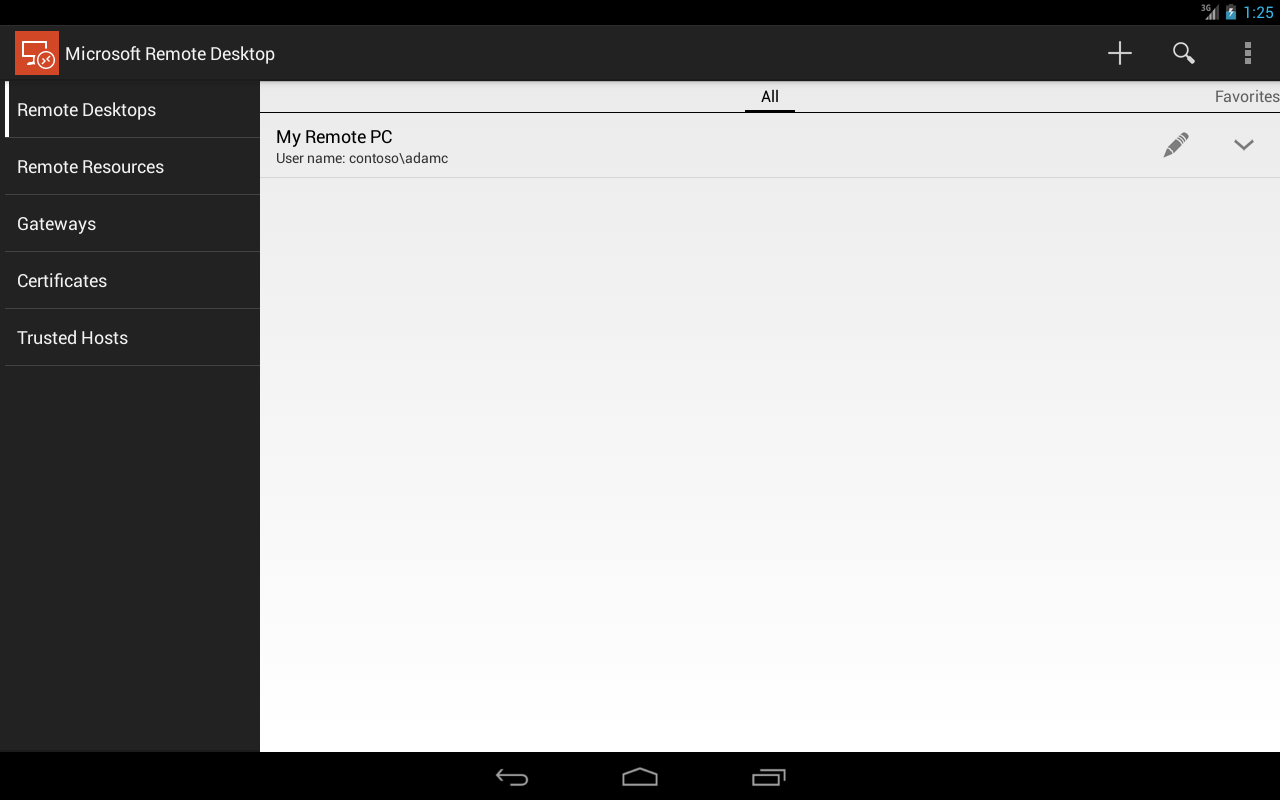
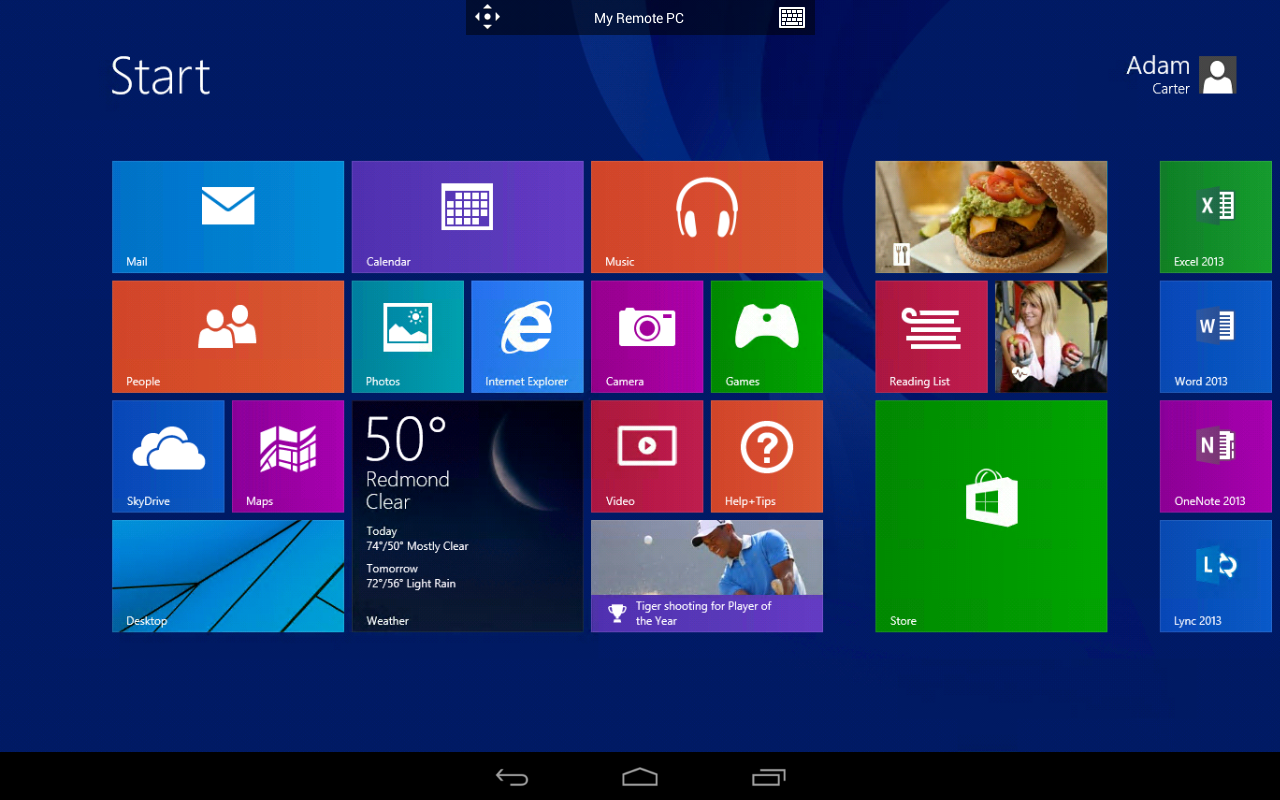
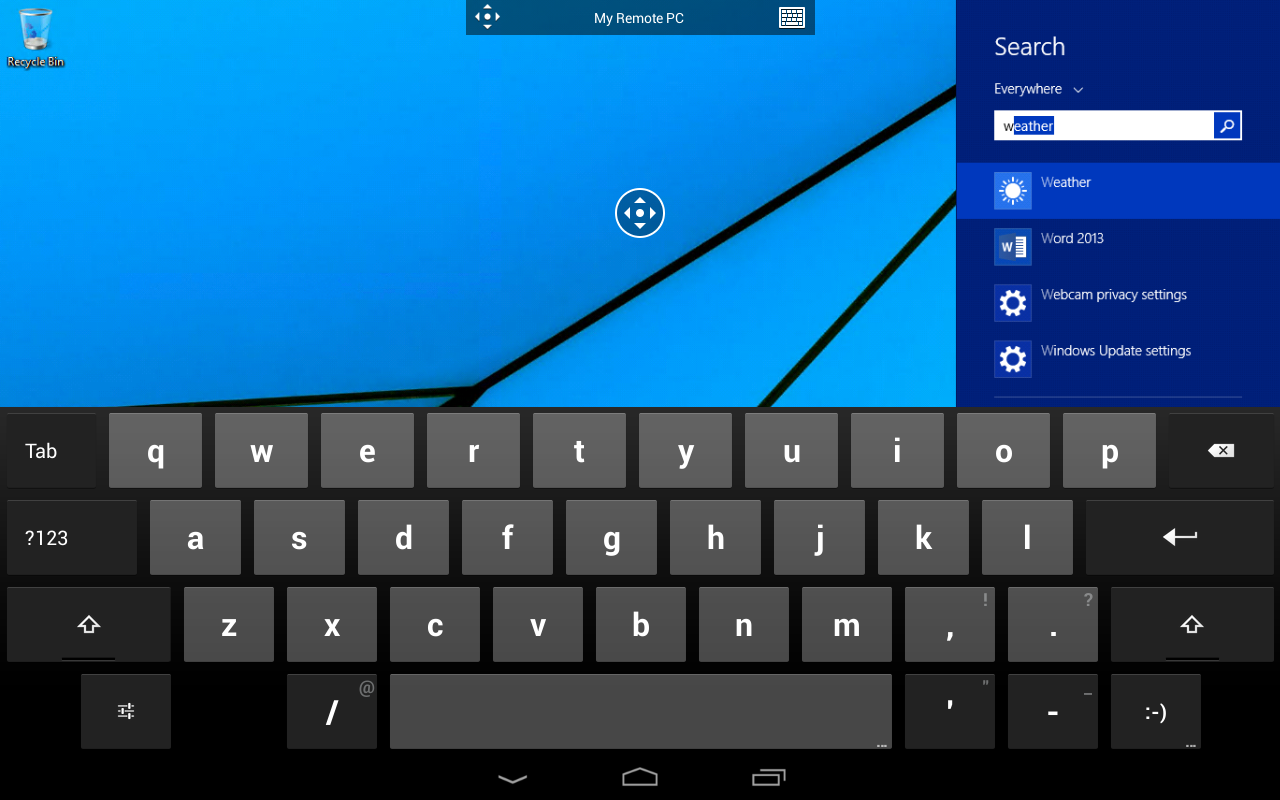
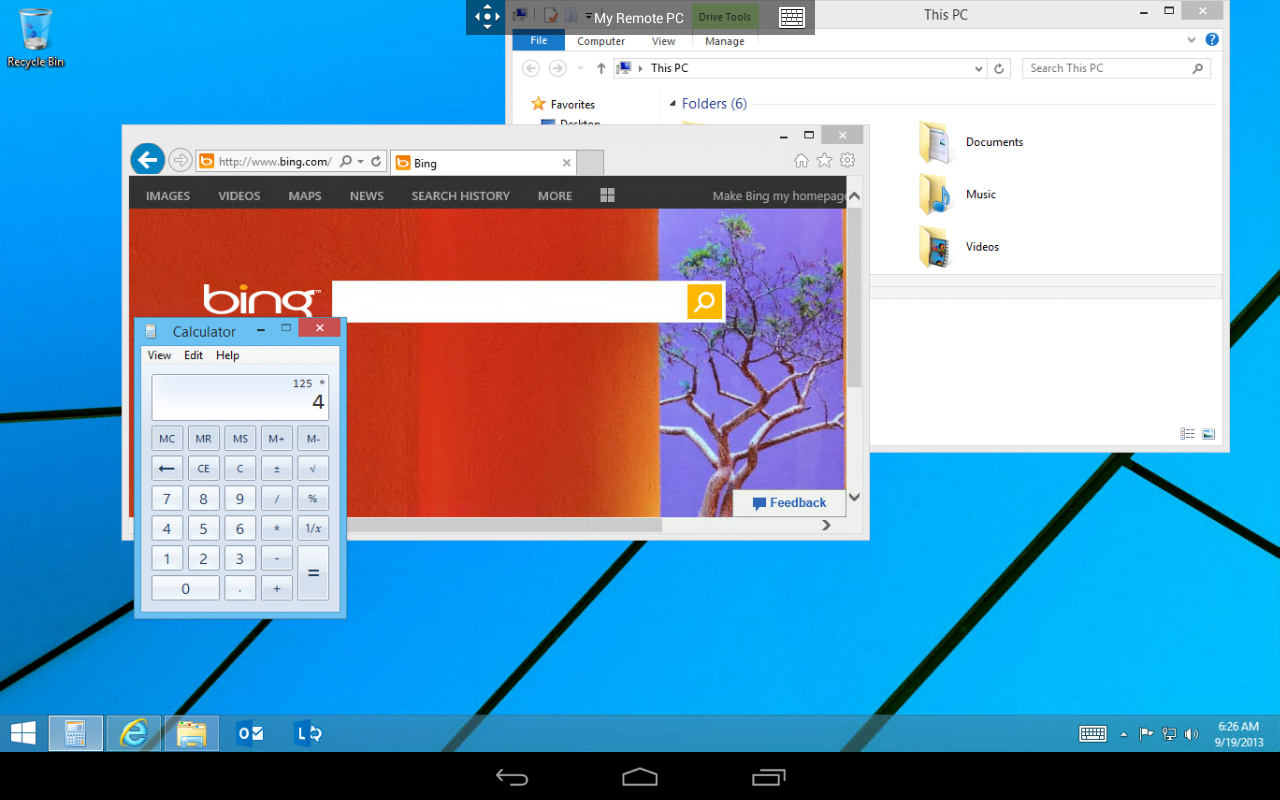
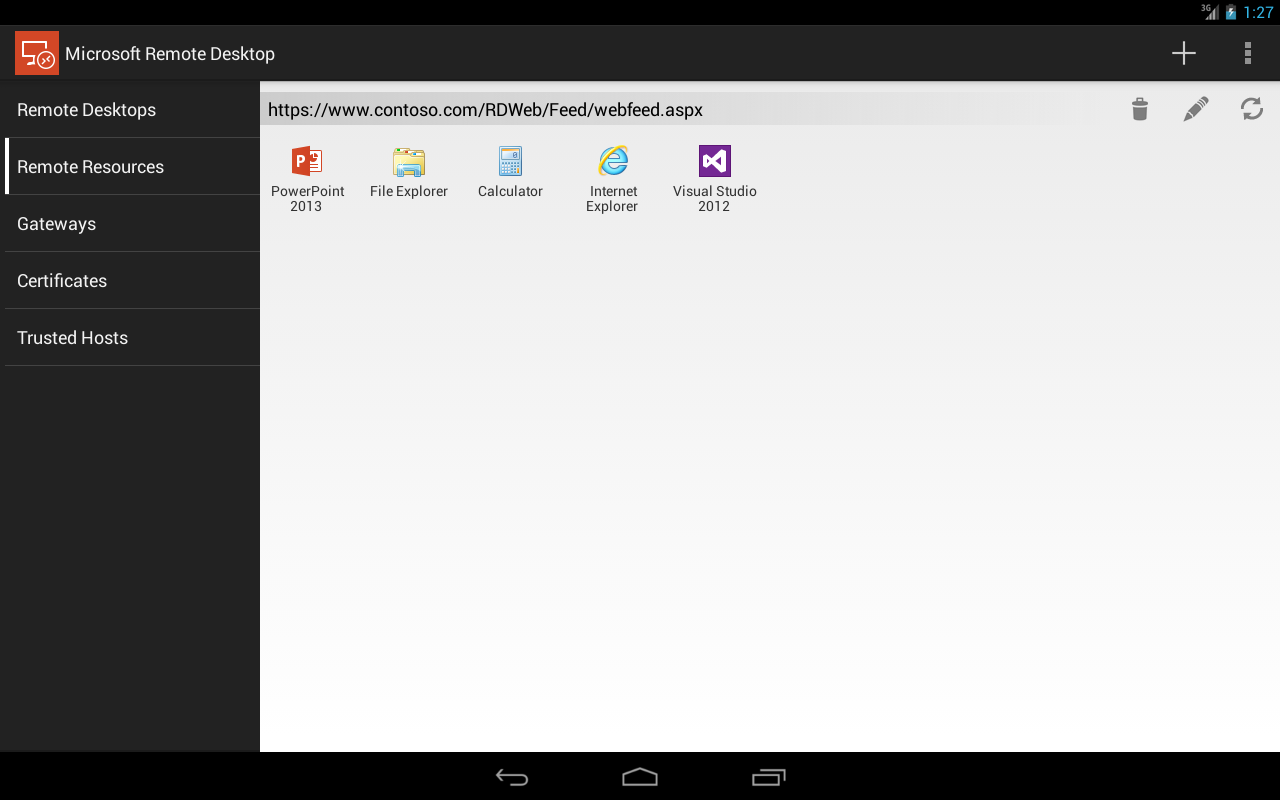
Microsoft Remote Desktop for Android is designed to resolve a major issue: When you are far from your office Windows PC, cloud desktop or enterprise apps. Whether you are fixing server issues at a cafe or getting files from your workplace for a business trip, the app allows remote PC control with enterprise-level security at zero charges.
Instantly connect to Windows PCs.
To set up Remote Desktop Connection, you need to make sure the remote PC is set up for remote connection. For this, you need to enable Remote Desktop on Windows. Then configure some network settings and add the connection using PC name or IP address. When you set it up, the app provides easy remote desktop access to complete Windows environments, Remote Desktop Services (RDS), Azure Virtual Desktop, Windows 365 and Microsoft Dev Box. You can add widgets for the connections you use most often to the home screen, switch between multiple sessions in the Connection Center, and search all tabs of PCs or Workspaces. The app’s workflows also support Chromebook RDP, featuring high DPI-scaling and dynamic display resolution changes, which happen depending on your device.
You can visually preview what launching the desktop will look like while the favourites tab helps you organize your most-used resources.
Device redirection will allow the use of webcams, local devices including storage, and input devices (like microphones and pen input) as if they were on the remote machine.
Secure access with Azure AD and Gateway.
You can use Azure Active Directory to sign in on a single website. Also use role-based access for verification. Gateway support RDP takes the trajectory of your traffic via RD Gateway servers. Also supports security from your business’s enterprise network. You can set HTTP proxy settings, enable the client-side time zone synchronization, and manage RDS authentication using administrator credentials for published resources. Dialogs for reconnecting remote sessions are handy for overcoming locked screens and dropped connections and prevent the workflow from experiencing interruptions when connected to unreliable mobile networks.
Important warning: the app will stop working on May 27, 2025. Microsoft is now pushing the new Windows App which has the same package name and shifts users to a new UI that has Favorites/Devices/Apps tabs. The main RDP engine is unchanged, but migration may break legacy workflows.
Smooth touch, mouse and audio control.
The use of touch admin remote ensures that the taps on your smartphone are translated into mouse operations on your Windows machine which includes swiping to scroll, a two-finger tap serving as a right-click, and two precision modes for moving the mouse pointer on an exact pixel. Your Android speakers or headset will output remote audio as it incorporates audio redirection. External keyboard support includes NumLock and ScrollLock. When you have multiple monitors, they function as intended. Furthermore, with microphone redirection, you can use your voice to make calls or dictate in remote apps.
Some bugs have been fixed. For example, the issue on Samsung IME where you would get an extra ENTER key input is fixed. Though inputs are disappearing on a few devices.
5 Quick Setup Tips:
- Before you add the connection, you need to enable Remote Desktop via Windows Settings. Select System, and then select Remote Desktop.
- For remote access from outside your network, a static IP or a DDNS hostname is recommended.
- Set up the RD Gateway in the application advanced settings for external connections.
- Ensure audio redirection and display scaling work well over Wi-Fi before using mobile data.
- Save important websites to your home screen for quick access.
Why download now?
Download software to quickly access your Windows and cloud desktops securely from any remote location. Customize display and audio, and use touch/keyboard. The pricing not to charge anything (no ads, no in-app purchases) makes it a must-have for IT professionals and remote workers who are tied to Microsoft ecosystems. You have until May 2025 to move to Windows App. Plan your migration today!


No comments yet :(